Catalog & Table Detail
The Catalog page lets you browse all tables that have been registered through the Snowflake DATABASE_CATALOG reference. This is your starting point for understanding what data you have and how it is classified.
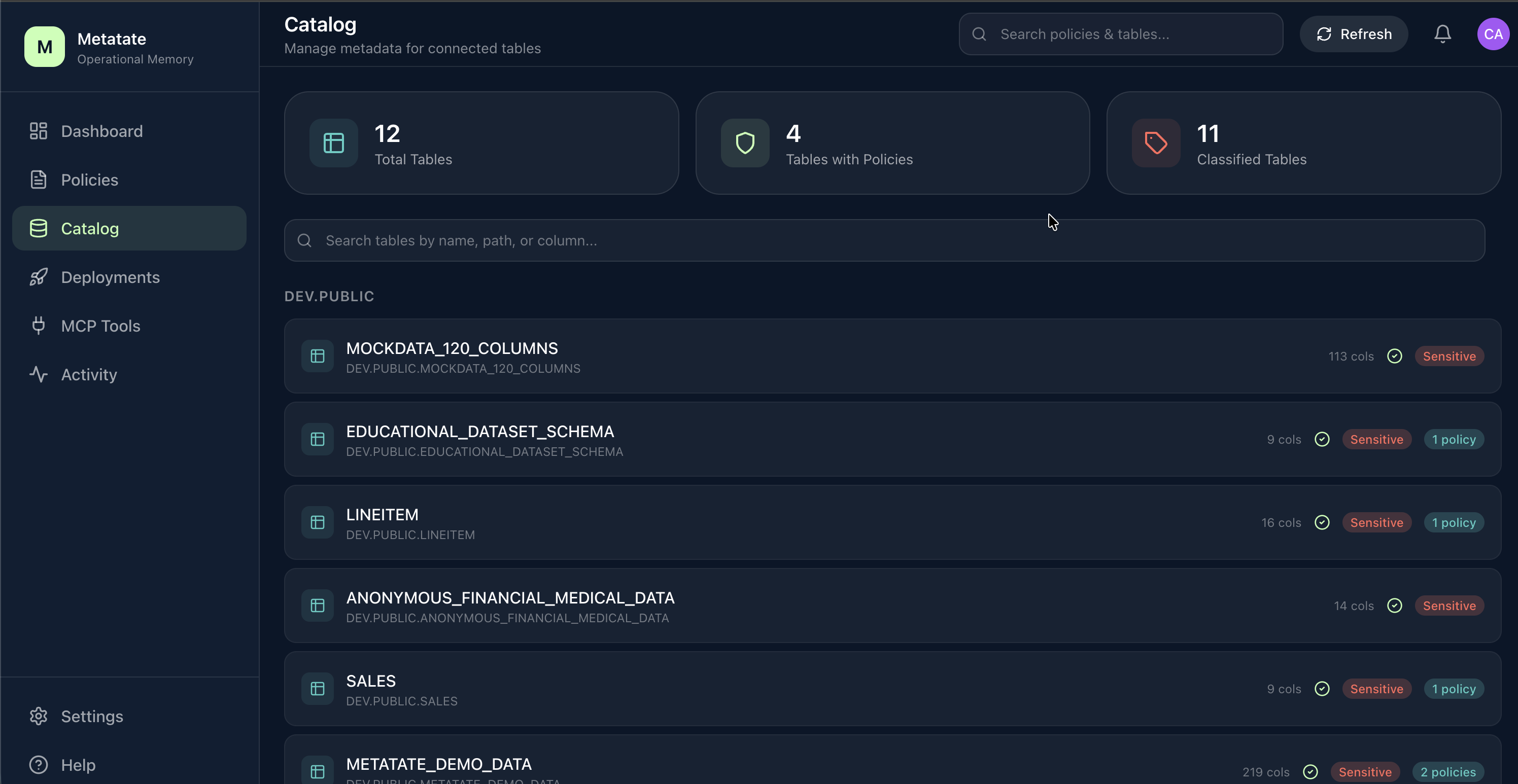
Browsing the Catalog
The catalog displays tables grouped by database and schema. For each table you can see:
- Database / Schema / Table name
- Column count
- Classification status -- whether columns have been classified yet
Use the search bar to filter by table or schema name. The catalog only shows tables that your Snowflake application has been granted access to via the DATABASE_CATALOG reference configured during installation.
Table Detail View
Click on any table to open its detail view. This page provides a column-level breakdown of the table's structure and governance metadata.
Column Information
Each column row displays:
| Field | Description |
|---|---|
| Column Name | The column identifier in Snowflake |
| Data Type | The Snowflake data type (VARCHAR, NUMBER, TIMESTAMP, etc.) |
| Classification | The assigned data type from your taxonomy (e.g., Email, SSN, Phone Number) |
| Sensitivity | Sensitivity level: low, medium, high, or critical |
| PII | Whether the column contains personally identifiable information |
AI-Powered Classification
Metatate uses Snowflake Cortex to automatically classify columns based on column names, data types, and sample metadata. Classification runs entirely inside Snowflake with zero data egress.
To classify a table:
- Open the table detail view.
- Click Classify Columns.
- Cortex analyzes each column and suggests a classification from your taxonomy.
- Review the suggestions and accept or adjust them.
Classifications feed directly into policy creation. When you write a policy with classification instructions, you can reference the types discovered here.
Custom Data Type Taxonomy
The classification engine uses a configurable taxonomy of data types. The default taxonomy includes common types like Email, SSN, Phone Number, Address, and Date of Birth. You can add custom types in Settings to match your organization's specific data landscape.
For example, a healthcare company might add types like MRN (Medical Record Number) or Diagnosis Code, while a financial institution might add Account Number or SWIFT Code.
Catalog and Policies
The catalog and policy editor are tightly connected:
- When creating a policy, the scope section references tables from the catalog.
- The Table Reference Browser in the policy editor lets you pick tables and columns directly from the catalog.
- Column classifications from the catalog inform which instructions you might want to add (e.g., classifying a column as
SSNsuggests adding amaskinginstruction).
Next Steps
After exploring your tables and classifying columns, head to the Policy Editor to create governance rules based on what you found.